

Global Broker Regulation Inquiry App
About WikiFX
English
简体中文
繁體中文
English
Pусский
日本語
ภาษาไทย
Tiếng Việt
Bahasa Indonesia
Español
हिन्दी
Filippiiniläinen
Français
Deutsch
Português
Türkçe
한국어
العربية
اردو


LiteForex Login — Client Profile Sign-In & Account Access

WikiFX
|


Abstract:Learn how to login to LiteForex Client Profile, register and verify your account, reset passwords, and connect MT4/MT5 or WebTrader. Step-by-step fixes and FAQs.
Quick Start: How We Went from Sign-up to First Login?
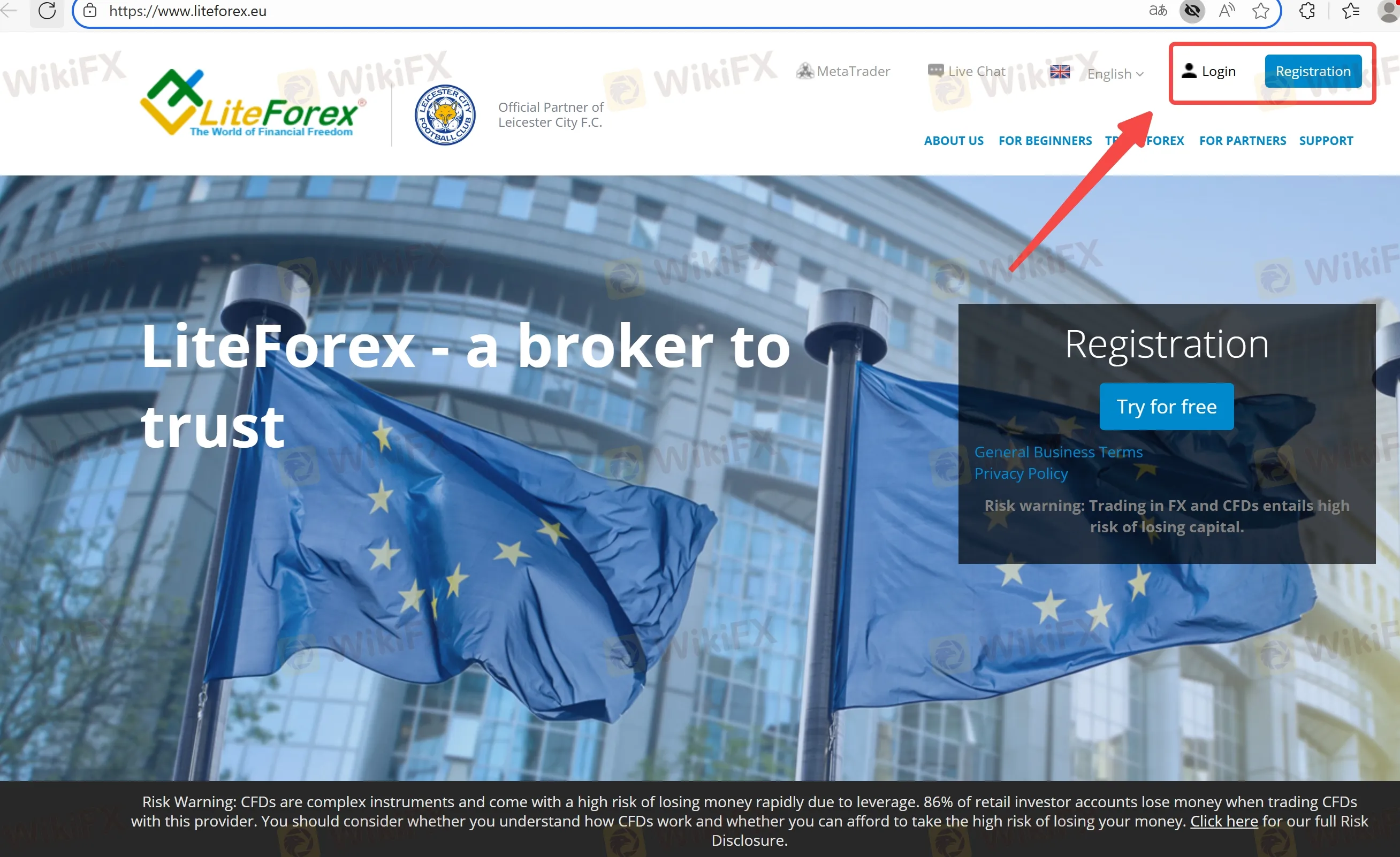
Step 1. Go to the Client Profile (login area)
From the official site header, select Login (or Registration if youre new). The Client Profile is where we manage accounts, funding, and personal data.
Step 2. Create your profile
On Registration, we entered country of residence, email, and a strong password. A one-time verification code was sent to our email to confirm the signup.
Step 3. First login & basic profile setup
After the first login, we opened Profile/Verification and completed the personal details page so later funding and withdrawals wont be blocked.
Step 4. KYC verification
We uploaded a valid photo ID and recent proof of address. In our test, features related to payments only appeared after KYC passed. We kept the same name across all payment methods to avoid compliance holds.
Step 5. Create trading accounts (Real or Demo)
Inside MetaTrader / Accounts, we created our first trading account (choose account type, base currency, and leverage). We also added a Demo account to practice before placing real orders.
Step 6. Connect a platform
We downloaded MT4/MT5 from the Downloads page or used the web interface from the Client Profile. We copied the login (account number) and server shown in the profile to sign in on the terminal.
Account & Login Security: What We Set up and Why It Matters?
- Credentials hygiene. We stored the Client Profile password and the MT4/MT5 trading password separately; they are different. We used a password manager and avoided reusing passwords.
- Verification gates. Without completed KYC, we noticed that deposit/withdrawal menus remain limited. Finishing identity and address checks unlocked the full account features.
- Region compliance. Services and onboarding depend on local rules. If the site shows “information-only” where you live, treat it as read-only and do not try to open or fund an account.
- Password resets. If we forgot our password, the Forgot password link on the login page sent a reset email immediately. If the email didnt arrive, checking spam and retrying with a fresh browser session usually helped.
- Email/SMS codes. When we didnt receive a one-time code, we verified the phone/email in the profile, then retried. If a carrier blocked the message, live chat support escalated it.
Pro tip from our test: finish KYC before funding. It prevents later payout delays and reduces manual checks on withdrawal requests.
Platform Login: Web, MT4, and MT5
Web trading (no installation):
We launched the web platform straight from the Client Profile. It‘s convenient for quick checks or when we’re on a borrowed device.
MT4 / MT5 desktop & mobile:
- Download the installers from Downloads (Windows/macOS/mobile).
- Open the app → Login to Trade Account → select the correct server (exact server name is shown in your Client Profile) → enter your account number and trading password.
- If the terminal shows “common error” or “no connection,” we double-checked the server name, changed the data center in the bottom-right status bar, and verified internet/firewall settings.
Note: keep the terminal and mobile apps updated, and never share investor (read-only) passwords publicly—screenshots can leak server and account IDs.
Fast Fixes When Login Goes Wrong
- Wrong credentials? Reset via Forgot password; then fully close and relaunch the browser or app before retrying.
- Verification pending? Re-upload uncropped, high-resolution documents; ensure the address proof is recent (typically within 3 months).
- Code not received? Confirm the contact info in Profile; try a different email domain or ask support to trigger a manual code.
- Terminal still offline? Confirm the server, check time/date on your device, and test another network (mobile hotspot vs. Wi-Fi).
- Stuck at region screen? If your region is restricted, do not attempt workarounds. Reach out to support for official guidance.
Your Questions Answered — LiteForex Login
How do I access the official login page?
Use the Login link in the sites top navigation to reach the Client Profile. Bookmark it and always check the domain before entering credentials.
Do I need to verify before I can deposit or withdraw?
Yes. In our experience, full KYC (ID + proof of address) must be approved before funding and payouts are fully enabled.
Whats the difference between Client Profile and MT4/MT5 login?
Client Profile is your account portal (profile, KYC, payments). MT4/MT5 uses a trading account number + trading password + server. They are separate systems.
I forgot my password. What now?
Click Forgot password on the login page and follow the reset email. If you still cant access the account, contact live chat or the phone line listed on the Contacts page.
Why cant I receive the verification code?
Check that your email/phone is verified in the profile, look in spam or blocked senders, then try again. If your carrier filters messages, support can help resend or switch the verification channel.
How do I switch between Demo and Real after login?
Inside the Client Profile, create the account type you want and toggle between Demo and Real. In MT4/MT5, pick the corresponding account number/server when logging in.
Disclaimer:
The views in this article only represent the author's personal views, and do not constitute investment advice on this platform. This platform does not guarantee the accuracy, completeness and timeliness of the information in the article, and will not be liable for any loss caused by the use of or reliance on the information in the article.
WikiFX Broker
Latest News
FXDD Malta Licence Ends: What Traders Need to Know
WikiFXSouth Korean Won: BoK tightening supports KRW against US Dollar – Commerzbank
WikiFXBreaking: Nonfarm Payrolls benchmark revision to lower US employment by 79,000 through March 2026
WikiFXSilver Price Forecast: False breakout and hawkish Fed sink XAG
WikiFXDow Jones Industrial Average round-trips a Fed that promised nothing
WikiFXMexican Peso tumbles as Warsh embarks on inflation fight
WikiFXOEXN Broker Review: Regulated but is it Safe for Traders?
WikiFXJapanese Yen dips further despite hotter inflation, upbeat employment data
WikiFXEC Markets Marketing Director Nick Xydas Steps Down
WikiFXPoland: Growth supported by investment rebound – ING
WikiFX