

Global Broker Regulation Inquiry App
About WikiFX
English
简体中文
繁體中文
English
Pусский
日本語
ภาษาไทย
Tiếng Việt
Bahasa Indonesia
Español
हिन्दी
Filippiiniläinen
Français
Deutsch
Português
Türkçe
한국어
العربية
اردو


T4Trade Login & Register — How to Start?

WikiFX
|


Abstract:Learn how to register, verify (KYC), and log in to T4Trade. Step-by-step Client Portal, demo account setup, MT4 login/reset, plus common login FAQs.
How Can New Traders Get Started with T4Trade?
We walked through the onboarding to map the flow—from registration to MT4 login—using T4Trades help articles and legal/KYC references.
Step 1 — Register a profile (Client Portal).
Create your account from the site and open a Demo if you want to practice first.
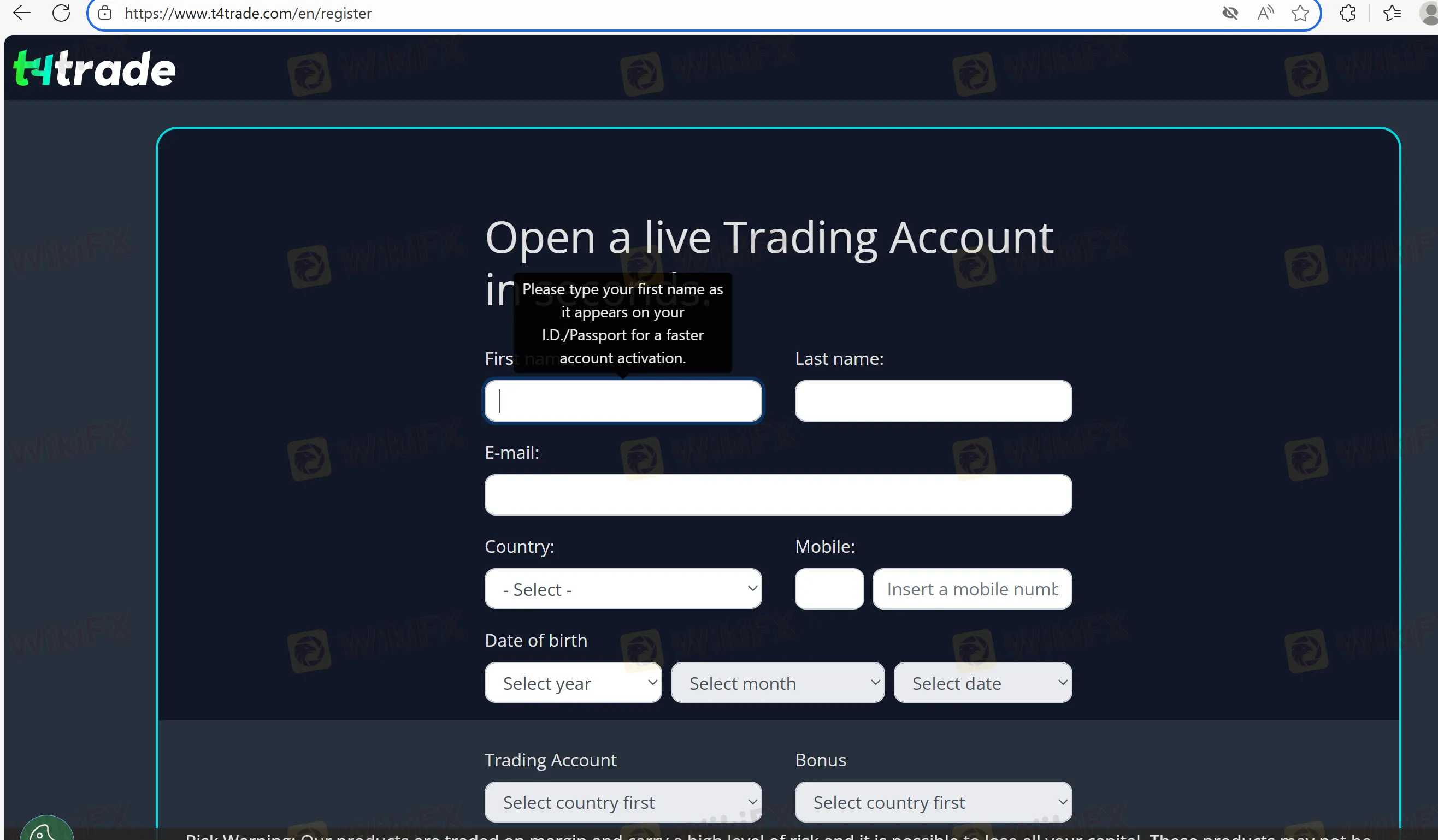
Step 2 — Complete KYC/Verification.
Submit government ID and proof of address (utility bill/bank statement), as described in T4Trade guides/privacy and Client Services Agreement (KYC due-diligence).
Step 3 — Fund the account (optional for live trading).
Log in to the Client Portal, click Deposit, and choose a listed method. Remember: the deposit method must be used for withdrawals, and processing times vary by provider.
Step 4 — Get MT4 credentials and log in.
After approval, use your account number, password, and server to log in on MT4 desktop or MT4 WebTrader. If you cant connect, reset the MT4 password in the portal.
Step 5 — Risk check before going live.
Start small, enable 2FA where available, and confirm negative balance protection and segregation policies.
MT4 Login & Access — What You Need?
- MT4 Desktop: download and log in with live/demo credentials; pick the correct server. If missing, rescan or add server manually.
- MT4 WebTrader: trade via browser—helpful on shared or locked-down devices.
Common Questions about T4Trade Login & Registration
Q1. What documents do I need for KYC?
A. Government photo ID and recent proof of address; the privacy policy explicitly lists passport/utility bills/bank statements as examples.
Q2. I forgot my MT4 password—what now?
A. Log in to the Client Portal and use the MT4 password reset button; credentials are emailed.
Q3. Can I use WebTrader without installing anything?
A. Yes—MT4 WebTrader runs in the browser.
Q4. Is a demo account available?
A. Yes. Its the safest way to test pricing and execution.
Q5. How long until funds appear after deposit/withdrawal?
A. Internal processing is usually within ~24h, but bank wires/regions can extend timing. Check live estimates in your portal.
Disclaimer:
The views in this article only represent the author's personal views, and do not constitute investment advice on this platform. This platform does not guarantee the accuracy, completeness and timeliness of the information in the article, and will not be liable for any loss caused by the use of or reliance on the information in the article.
WikiFX Broker
Latest News
FXDD Malta Licence Ends: What Traders Need to Know
WikiFXSouth Korean Won: BoK tightening supports KRW against US Dollar – Commerzbank
WikiFXBreaking: Nonfarm Payrolls benchmark revision to lower US employment by 79,000 through March 2026
WikiFXSilver Price Forecast: False breakout and hawkish Fed sink XAG
WikiFXDow Jones Industrial Average round-trips a Fed that promised nothing
WikiFXMexican Peso tumbles as Warsh embarks on inflation fight
WikiFXOEXN Broker Review: Regulated but is it Safe for Traders?
WikiFXJapanese Yen dips further despite hotter inflation, upbeat employment data
WikiFXEC Markets Marketing Director Nick Xydas Steps Down
WikiFXPoland: Growth supported by investment rebound – ING
WikiFX